Topics & collaboration
Topic board: Kanban for your contact themes
The topic board shows all of your team's topics in one place — as a Kanban board with six statuses or as a list. You see at a glance what is currently going on around your contacts.
The board at a glance
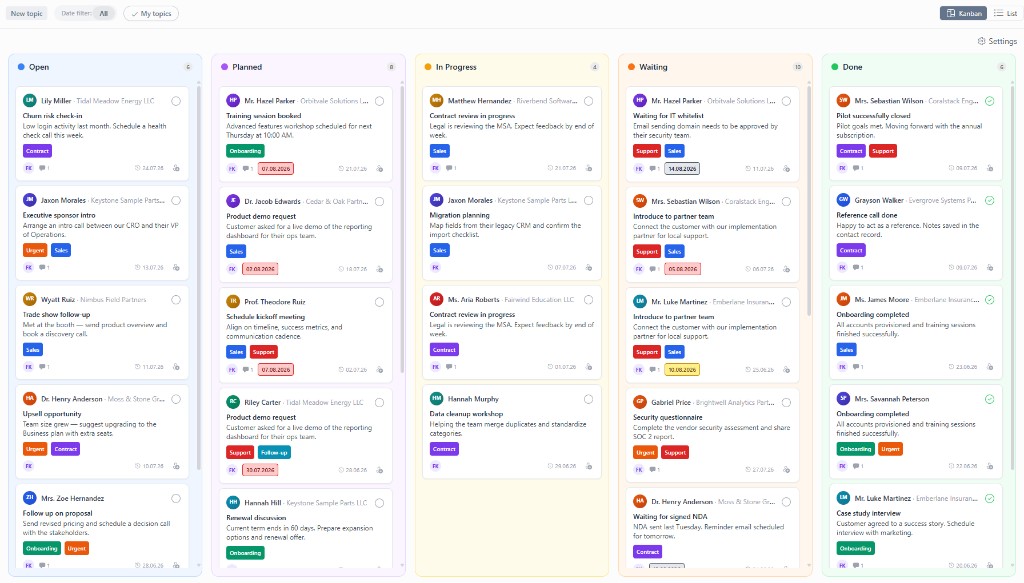
- Every column corresponds to a status — from open to done.
- Every card is a topic with contact, assignees, due date and tags.
- Move cards via drag and drop to change their status.
Board and list view
Switch between two views at any time:
- Kanban board — the visual overview across all status columns
- List — a sortable table, ideal for working through items by due date
Filtering and focusing
Narrow the board down to what you currently need:
- Assignees — only my topics or those of a team member
- Tags — e.g. all topics with the tag "quote"
- Due date — what is due this week
How teams work with the board
- New themes are created in the Topics tab of a contact or directly on the board.
- In the daily or weekly, the team walks through the board and moves cards into the appropriate status.
- Completed topics stay documented on the contact — the history is never lost.
Frequently asked questions
Which statuses does the topic board have?
The board moves topics across six statuses from open to done. Simply drag and drop a topic into the appropriate column.
Can I also view the board as a list?
Yes. The topic board switches between Kanban view and list view — depending on whether you prefer the column overview or a sortable table.
Do I see all of the team's topics on the board?
The board shows the topics of all contacts you have access to. Filters by assignee, tags or due date narrow the view down to what you currently need. Permission groups control who sees what.