Import & sync
CSV import & export: bring in data and keep control
Whether it is an Excel sheet, a legacy CRM or a trade fair export: with the CSV import you bring existing contact data into Company Contacts in minutes. And because your data belongs to you, you can export it again at any time.
Importing contacts
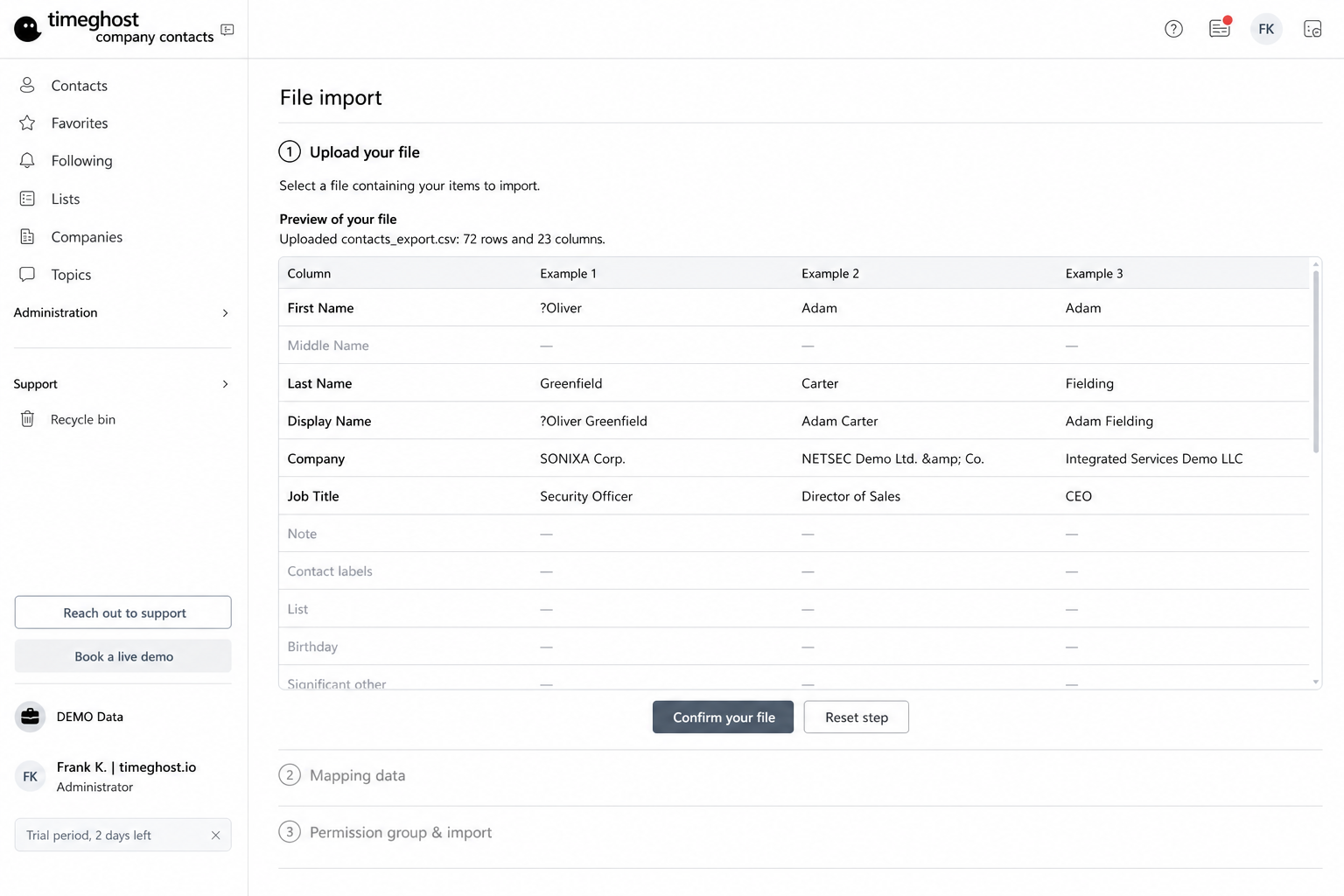
- Prepare a CSV file with a header row — e.g. columns for first name, last name, email, phone and company.
- Start the import in Company Contacts and select the file.
- Map the CSV columns to the contact fields — custom fields can be filled as well.
- Review the preview and start the import.
Duplicate detection recognizes duplicate entries so no duplicates are created during import.
Tips for clean imports
- Use a header row with unambiguous column names.
- Keep company names consistent so contacts are correctly assigned to companies.
- Import a few rows as a test before migrating the full data set.
Exporting contacts
Export your address book or individual lists as a CSV file at any time — for reporting, mail merges or as a backup. Export is available in all plans: full control, no lock-in.
More ways to bring in data
- Outlook and Active Directory sync — for contacts from your Microsoft 365 environment
- Signature scanning — captures new people automatically from email signatures
Frequently asked questions
What format does the import file need?
A CSV file with a header row naming the columns — for example first name, last name, email, company. During import you map the columns to the fields in Company Contacts.
What happens if a contact already exists?
Duplicate detection recognizes duplicate entries during import. No duplicates are created and existing contacts stay clean.
Can I get my data back out of Company Contacts?
Yes, at any time. CSV export is available in all plans — your data belongs to you, there is no lock-in.