Import & sync
Outlook sync & signature scanning: capture contacts automatically
Typing contact data by hand costs time and leads to outdated entries. That is why Company Contacts captures contacts automatically — from Outlook, Active Directory and the signatures of your emails.
Outlook and Active Directory sync
Import existing contacts automatically from your Microsoft 365 environment:
- Grant a one-time permission for access to your Outlook contacts.
- Company Contacts imports the contacts into the shared address book.
- Colleagues from Active Directory are also available as internal contacts — no duplicate maintenance.
Duplicates are detected and merged instead of creating double entries.
Scanning email signatures
Signature scanning automatically detects contact data from the signatures of your emails:
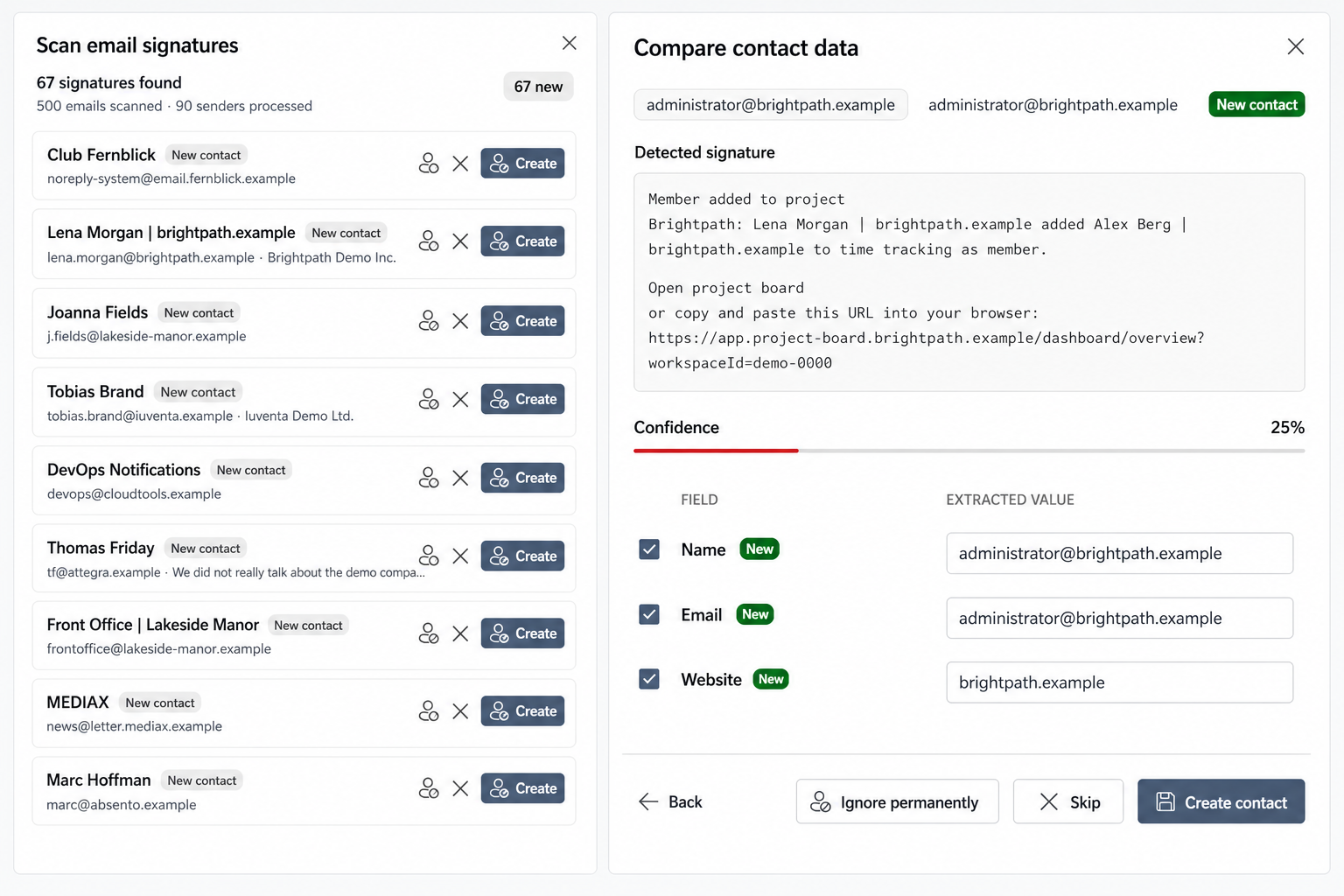
- Company Contacts analyzes the signatures of incoming emails: name, company, position, phone number and other contact details.
- New people are suggested as contacts; existing contacts are enriched with updated data.
- You review every suggestion and confirm with one click — nothing is created or changed without your consent.
This keeps the address book up to date without anyone typing up business cards.
Good to know
- Processing is GDPR-compliant within the EU; the solution is ISO 27001 compliant.
- The email and calendar history of a contact appears in the Events tab — the same permission covers it.
- For data outside Microsoft 365, use the CSV import.
Frequently asked questions
Are contacts created without my consent?
No. Signature scanning only suggests new contacts and updates — you review every suggestion and confirm it with one click. Only then is the contact created or changed.
What happens to duplicates during sync?
Company Contacts detects duplicate entries and merges data instead of creating new duplicates. In addition, duplicate detection helps clean up existing duplicates in the address book.
Which permissions does signature scanning need?
The scan needs read access to your emails in Microsoft 365. You grant the permission once; processing is GDPR-compliant within the EU.