Contacts & companies
Managing contacts: creating, detail view, direct actions
Contacts are the heart of Company Contacts: a central address book for internal and external contacts that your whole team works with. This page shows you how to create contacts, what the detail view offers and how to communicate directly from a contact.
Creating a contact
- Click "New contact" in the contact list.
- Enter the basic data: first name, last name, display name and title.
- Add organization (company, position), contact information (email, phone), addresses as well as web and social media profiles.
- Optionally assign the contact to a list and add tags.
Contacts are also created automatically — via Outlook sync, signature scanning or CSV import.
The detail view
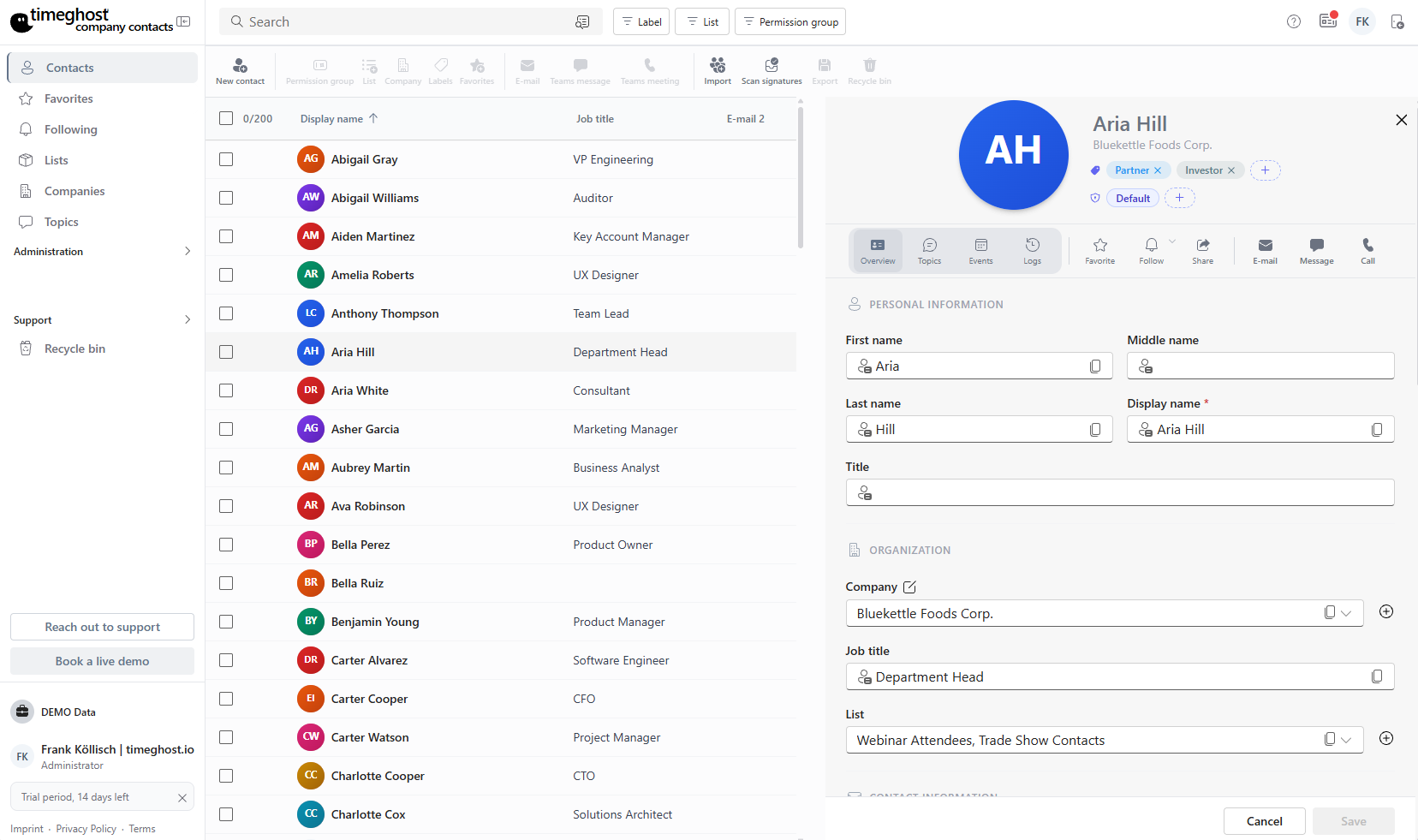
Every contact is organized into four areas:
| Tab | Content |
|---|---|
| Overview | Personal data, organization, contact information, addresses, web & social media, notes and custom fields |
| Events | Past and upcoming appointments plus the email history with the contact — straight from Microsoft 365 |
| Topics | Themes, tasks and notes around the contact with comments and mentions |
| Logs | Complete activity log: who changed what and when |
For the Events tab you grant a one-time permission to read calendar and emails from your Microsoft 365 environment.
Direct actions
Start any communication with one click, right from the contact:
- Send email — opens a new email to the contact in Outlook
- Teams message — starts a chat in Microsoft Teams
- Teams meeting — schedules a meeting with the contact
- Call — calls the contact directly via Teams
Searching and filtering contacts
The contact list is sortable and searchable. Filter by lists, tags or favorites to quickly find the right group. Duplicate detection helps you find and merge duplicate entries.
Deleting and restoring contacts
Deleted contacts go to the recycle bin and can be restored from there — read more under Administration.
Frequently asked questions
Who can see the contacts I create?
Contacts are visible to your team in the shared address book. With permission groups, administrators control exactly who can see and edit which contacts.
Can I see the email history with a contact?
Yes. The Events tab shows past and upcoming appointments as well as the email history with the contact — straight from your Microsoft 365 environment, once you have granted the corresponding permissions.
What happens to deleted contacts?
Deleted contacts go to the recycle bin and can be restored from there. Nothing gets lost by accident.