Getting started
Getting started with Company Contacts: login, navigation, trial
Company Contacts is a central contact management solution for Microsoft Teams and Microsoft 365: a shared address book for your team, extended with topics (themes and tasks per contact), AI-assisted emails and full integration with Outlook and Entra ID. This page walks you through your first login and the basic navigation.
Requirements
- A Microsoft 365 account (Entra ID) for signing in
- Microsoft Teams or a modern browser (Chrome, Edge, Firefox, Safari)
- A workspace — it is set up on your first login, or you join one by invitation
First login
- Add Company Contacts from the Microsoft Teams store — or open app.companycontacts.timeghost-solutions.com in your browser.
- Sign in via single sign-on with your Microsoft account. No separate registration is required.
- On your first login your workspace is set up — or you are added to an existing workspace by invitation.
- The 14-day trial starts automatically: all features, up to 100 users, no credit card.
The contact list
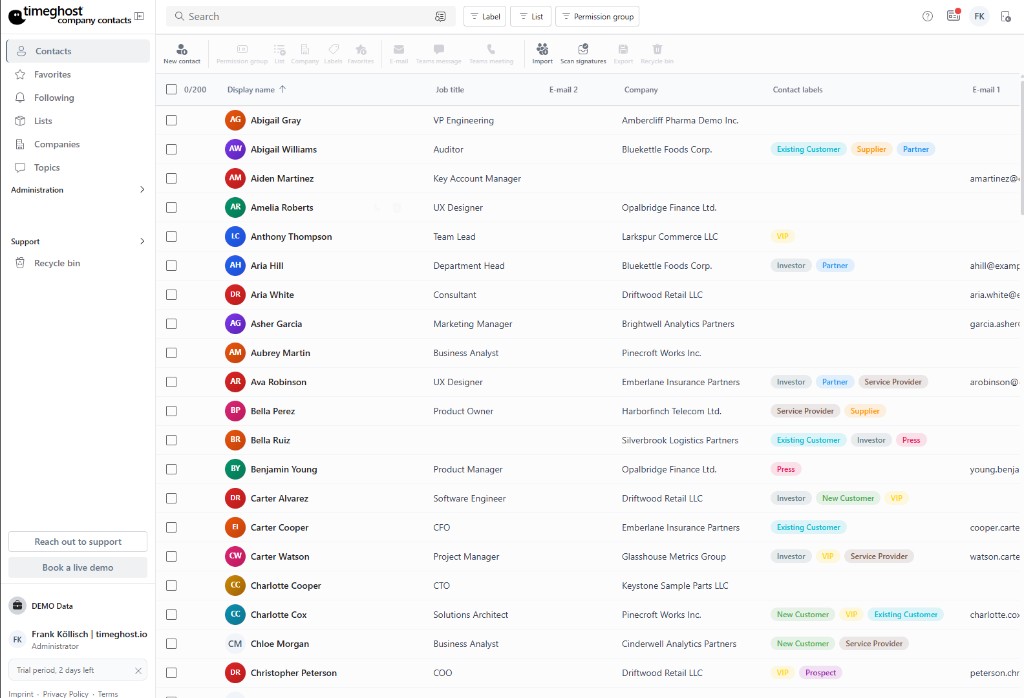
The contact list is your home page and shows all of your team's contacts — sortable, searchable and filterable by lists, tags and favorites. The search finds people and companies in seconds.
Navigation
| Area | Description |
|---|---|
| Contacts | Central address book for internal and external contacts |
| Companies | Organizations with industry, address, time zone and website |
| Topic board | Themes and tasks around your contacts as a Kanban board or list |
| Lists | Custom contact lists for projects or campaigns |
| Administration | Team, roles, permissions and settings (visible to admins only) |
Your first contacts
There are three ways to bring contacts into the app:
- Manually: Create contacts one by one — with every detail from address to social media.
- Sync: Import contacts automatically from Outlook and Active Directory.
- Import: Bring existing data into the app via CSV import.
Next steps
- Managing contacts — create, edit and understand the detail view
- Topics & comments — capture themes per contact and involve your team
- Emails with AI — let AI draft emails right from a topic
- Administration — invite your team and manage permissions
Frequently asked questions
Do I need a separate account for Company Contacts?
No. You sign in via single sign-on with your existing Microsoft 365 account through Microsoft Entra ID. No separate password or registration is required.
How long can I try Company Contacts for free?
You can try Company Contacts free for 14 days with up to 100 users — no credit card and no automatic renewal. After that, simply pick a suitable plan.
Does Company Contacts also work in the browser?
Yes. Company Contacts runs fully inside Microsoft Teams and additionally in any modern browser at app.companycontacts.timeghost-solutions.com.