Administration & account
Permission groups: controlling access & advanced permissions
With permission groups you control who can view, edit and create which contacts and companies. The principle: you assign content to a group and give users or team groups the matching rights. You will find permission groups in Administration under Team & Access → Permission groups — the area is only visible to administrators.
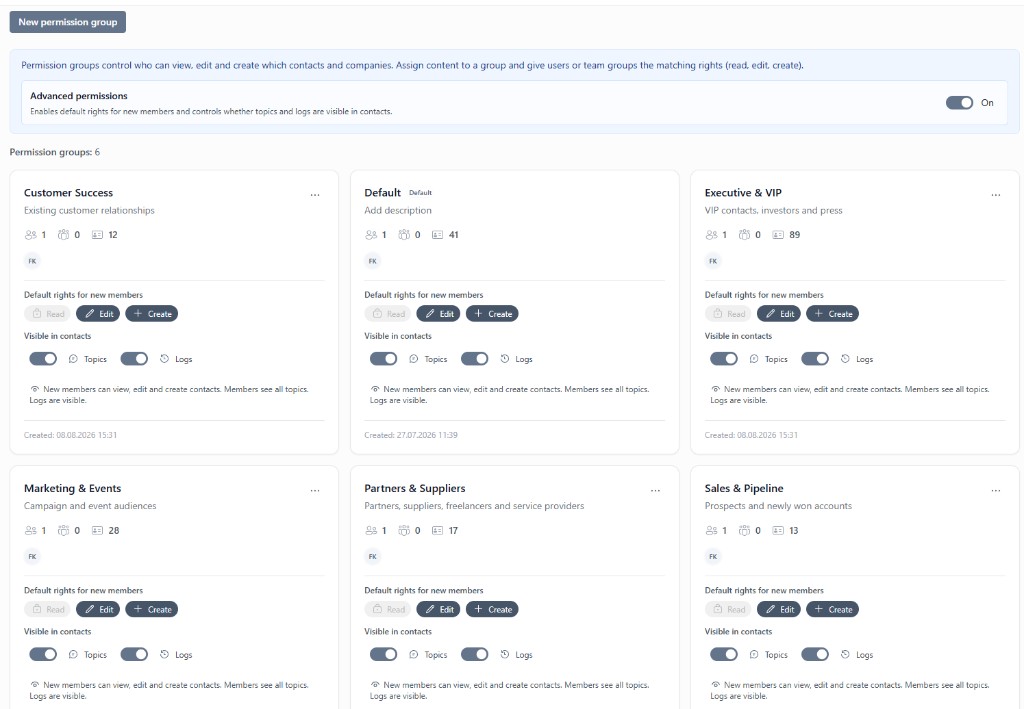
How the principle works
- Create a group: Use New permission group to create a group, e.g. "Sales & Pipeline" or "Partners & Suppliers".
- Assign content: Assign contacts and companies to the group — each group card shows how many users, team groups and contacts it contains.
- Grant rights: Give individual users or whole team groups the matching rights for this content.
This keeps sensitive contacts — such as key accounts, investors or press — restricted to the right people, while other areas stay open to the whole team.
The three permission levels
| Right | Meaning |
|---|---|
| Read | View the contacts and companies of the group |
| Edit | Change existing entries of the group |
| Create | Add new contacts and companies to the group |
The levels build on each other: anyone who can edit can also read — anyone who can create can also edit.
The "Default" group
Every workspace has a Default group. It applies to content that is not assigned to a specific group. Its settings define what members are allowed to do with "regular" contacts.
Advanced permissions
Above the group overview you will find the Advanced permissions toggle. It unlocks two additional levels of control that you then configure per group:
1. Default rights for new members
For each group you define which rights new workspace members automatically receive — read, edit and/or create. The advantage: new colleagues can start working right away without an administrator having to authorize each person individually.
- If new members should be able to see and maintain contacts of the "Marketing & Events" group right away, enable Edit and Create there.
- For sensitive groups like "Executive & VIP", leave the default rights off — new members then only get access once they are explicitly authorized.
2. Visibility of topics and logs
In addition, you control per group whether topics and logs (change histories) are shown in the contacts of the group:
- Topics: If the toggle is on, members see all topics and comments on the contacts of the group. If it is off, internal discussions stay hidden.
- Logs: Controls whether the change history of the contacts is visible — for example who changed which field and when.
Each group card summarizes the current configuration in one sentence at the bottom, e.g. "New members can view, edit and create contacts. Members see all topics. Logs are visible."
If the Advanced permissions toggle is off, these two levels are not available — the groups then only control basic access via the assigned users and team groups.
Practical tips
- Group by area of responsibility: Create groups like "Customer Success", "Sales & Pipeline" or "Partners & Suppliers" instead of authorizing per person.
- Use team groups: Authorize whole team groups instead of individual users — new team members inherit the rights automatically.
- Isolate sensitive contacts: For applicants, investors or press, a dedicated group without default rights for new members is worthwhile.
Frequently asked questions
What are permission groups?
Permission groups control who can view, edit and create which contacts and companies. You assign content to a group and give users or team groups the matching rights: read, edit, create.
What do advanced permissions do?
Advanced permissions enable default rights for new members and control whether topics and logs are visible in the contacts of a group. They are switched on or off centrally via a toggle above the group overview.
What do read, edit and create mean?
Read allows viewing the contacts and companies of a group, edit allows changing existing entries and create allows adding new entries to the group. The levels build on each other: anyone who can edit can also read.
Who can manage permission groups?
Permission groups are managed by administrators in administration under Team & Access. Only administrators can create groups, assign rights and switch advanced permissions on or off.